
the wait is over.
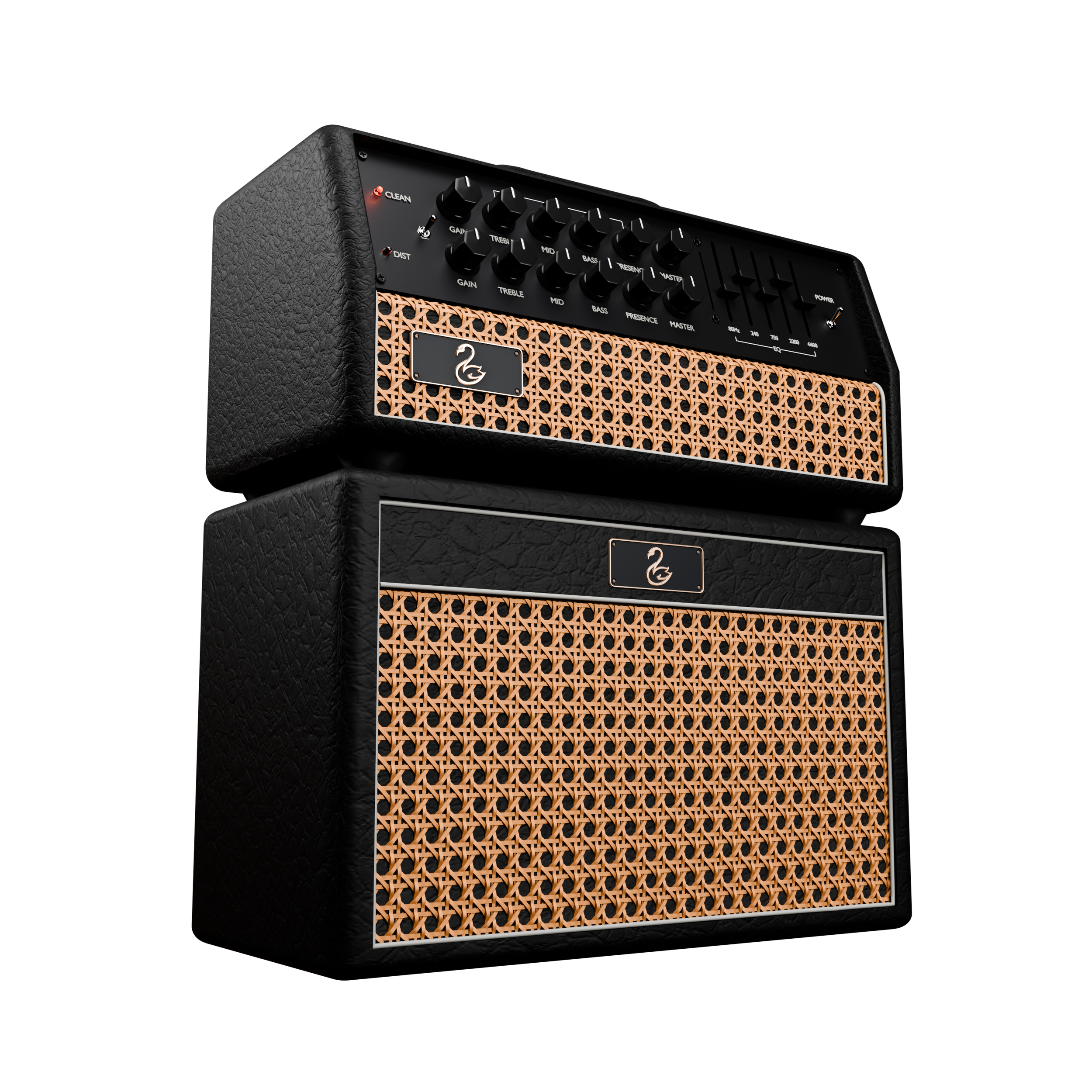
A next level amp suite built for swancore, shoegaze, post-hardcore, emo, and modern alternative guitar tones.
Includes carefully captured amp voices, pre-FX, cab/IR loading, post fx, and polished mix-ready tone shaping.
this is
the swan.
-
First, check your:
Spam folder
Junk folder
Promotions folder
Deleted folder
Search your inbox for:
In Touch Audio
Also confirm that you are checking the same email address used during checkout.
Your purchase email contains the information needed to download and activate The Swan.
If the email still cannot be found, contact support and include:
The name used for the purchase
The email address used during checkout
The approximate purchase date
Do not post your license key publicly.n text goes here
-
The downloaded ZIP must be extracted before installation.
Windows
Open the main download, then open the Windows folder and extract:
TheSwan-1.0.2-Windows-VST3.zip
After extracting it, you should see a folder named:
The Swan.vst3
Do not move the ZIP file itself into your plug-in folder.
macOS
Open the Mac folder and run the .pkg installer.
The installer handles the plug-in locations automatically.
-
The Swan is supplied as a VST3 plug-in on Windows.
Extract the Windows ZIP.
Find the extracted folder named:
The Swan.vst3
Copy that entire folder into:
C:\Program Files\Common Files\VST3\
The correct finished location is:
C:\Program Files\Common Files\VST3\The Swan.vst3
Keep the entire The Swan.vst3 folder together. Do not remove files from inside it.
-
No.
The ZIP must be extracted first.
Do not place this in the VST3 folder:
TheSwan-1.0.2-Windows-VST3.zip
Place the extracted folder there instead:
The Swan.vst3
-
That is normal because:
C:\Program Files\Common Files\VST3\
is a protected Windows system folder.
Approve the administrator prompt to complete the installation.
-
First, confirm that the plug-in is installed here:
C:\Program Files\Common Files\VST3\The Swan.vst3
Then in Ableton Live:
Open Preferences.
Select Plug-Ins.
Turn on Use VST3 Plug-In System Folders.
Click Rescan.
Close and reopen Ableton Live if it still does not appear.
The Swan should appear under your VST3 plug-ins.
-
Your other plug-ins may be VST2 plug-ins stored in a custom folder.
The Swan is a VST3 plug-in and should normally be installed here:
C:\Program Files\Common Files\VST3\
A folder used for .dll VST2 plug-ins is not necessarily the correct location for The Swan.
Make sure Ableton’s VST3 system folder option is enabled.
-
In Ableton’s Plug-In preferences, hold:
Alt
while clicking:
Rescan
Then restart Ableton Live.
-
The Swan should not cause severe audio glitches or make your DAW unresponsive.
Try the following:
Set The Swan’s Transpose control to 0.
Open your DAW’s audio settings.
Set the buffer size to 256 or 512 samples.
Close and reopen your DAW.
Test The Swan by itself in a blank project at 44.1 kHz.
The Quality setting controls the Transpose tool. It is not a general sound-quality setting. Higher Transpose quality can require more processing.
If the problem returns, remove The Swan from the project and contact support with:
Your Mac model and chip
Your macOS version
Your DAW and version
Your sample rate
Your buffer size
Whether one or multiple Swan instances were being used
-
Open the downloaded Swan folder.
Open the Mac folder.
Double-click the .pkg installer.
Follow the installation prompts.
Restart your DAW after installation.
The installer includes:
Audio Unit
VST3
AAX
Standalone application
The macOS package is signed, notarized, stapled, and built for both Apple Silicon and Intel Macs.
-
Use the format supported by your DAW:
DAWRecommended formatLogic ProAudio UnitAbleton LiveVST3ReaperVST3Studio OneVST3CubaseVST3Pro ToolsAAXStandalone useThe Swan application
You normally only need to open the format used by your DAW.
-
Try these steps:
Close Logic Pro.
Restart the Mac.
Reopen Logic Pro.
Allow Logic to finish scanning plug-ins.
Look under:
Audio Units → In Touch Audio → The Swan
If it still does not appear, open Logic’s Plug-In Manager and check whether The Swan is listed or failed validation.
-
Open The Swan and follow the activation instructions using the license information sent to your purchase email.
Copy the license information carefully and avoid adding extra spaces before or after it.
An internet connection is required during activation.